







Exclusively for Digital Growth Community Members
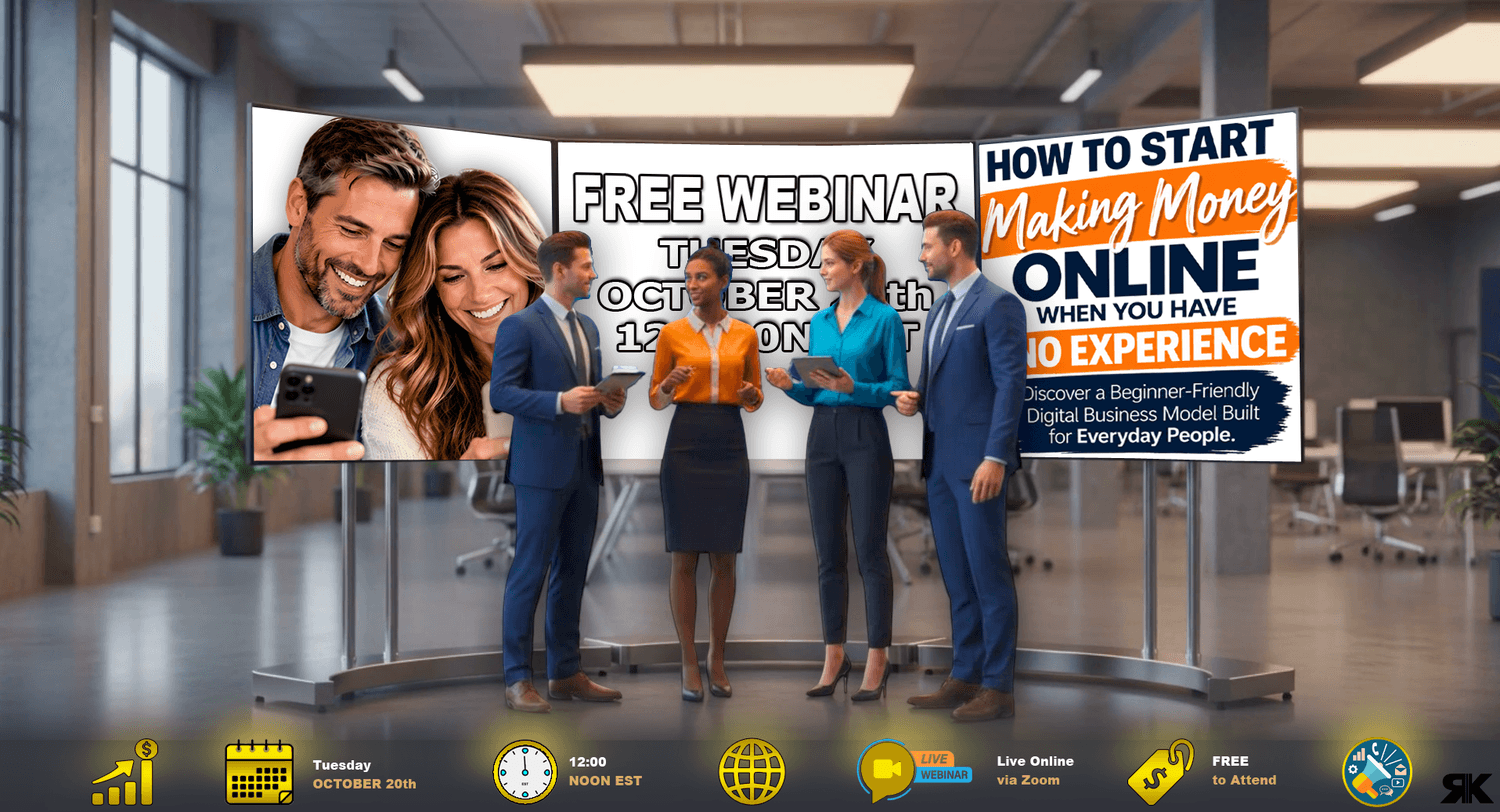
DGC FREE WEBINAR GRAPHICS
• FREE FOR YOU TO USE •
Add to Your Emails and Newsletters
that you send out for the
OCTOBER 20th Free Webinar
Check Out "Webinar Strategy" and How To:
"Create and Schedule Newsletters"
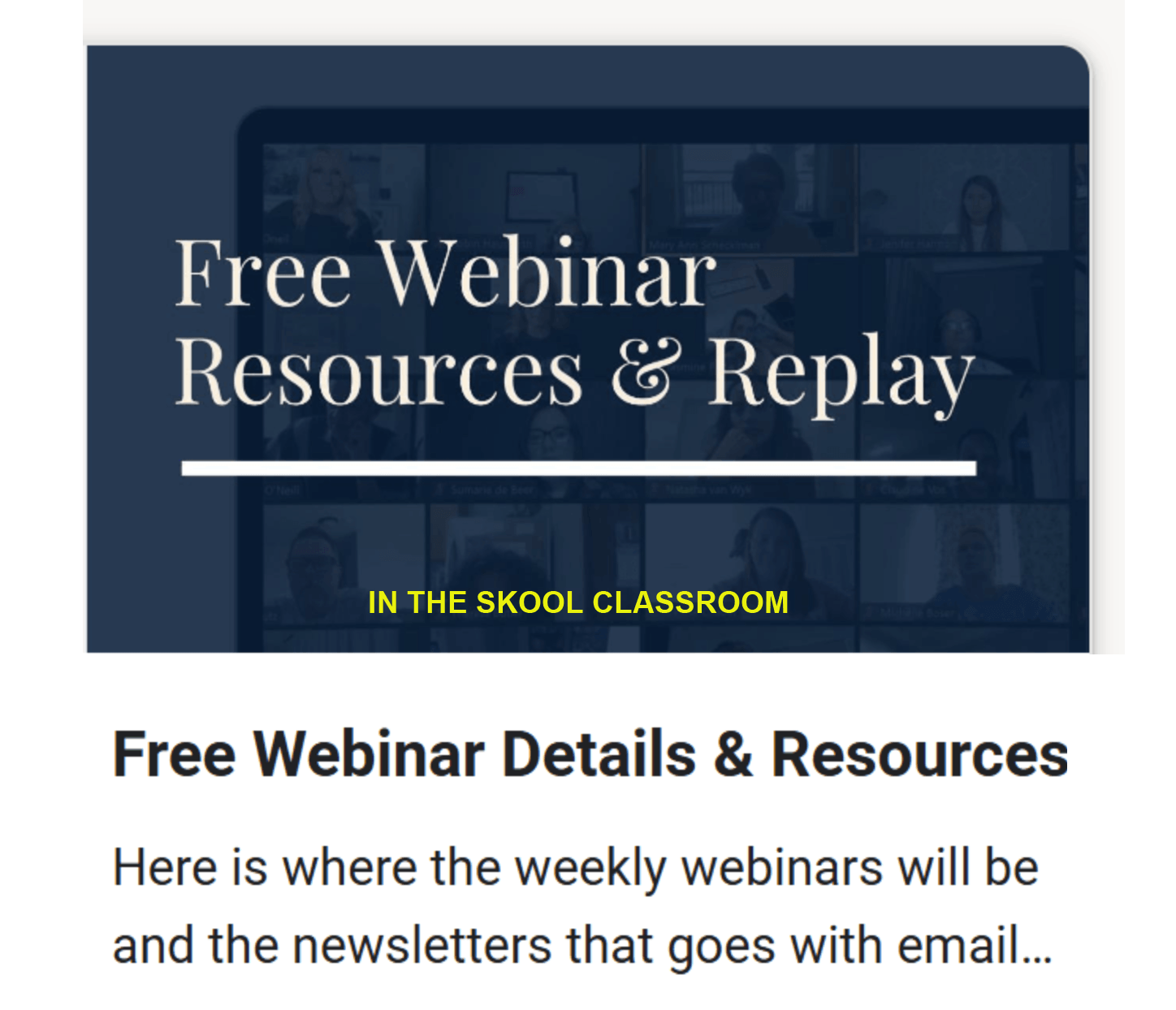
in the DGC Skool Classroom
GRAPHICs UPDATED WHEN NEW WEBINARs ARE POSTED
All images are basically the same size, just resized to position on this page
Most Images with a WHITE Background are Animated
HOW TO SAVE IMAGES TO YOUR DEVICE
to use: right click on image and "SaveImageAs" to a folder on your device. Click Here HELP
PLEASE NO HOT LINKS

Most all graphics posted here are crafted using an "Old School" Image Editor modifying templates that I created to be reusable. I have utilized AI in building a few templates, but in most cases, AI just doesn't pass my standards. I like being able to put that fine human touch that makes my graphics unique.



Event • Original Banner






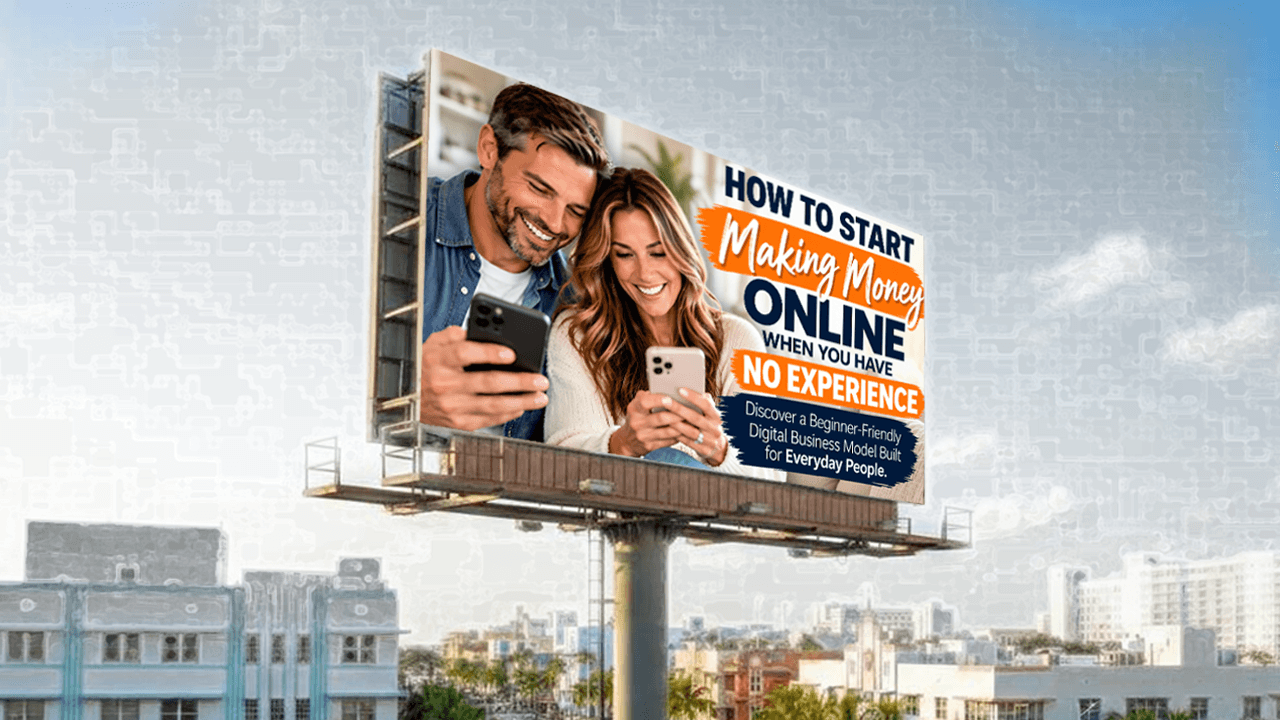
All images are basically the same size, just resized to position on this page
Most Images with a WHITE Background are Animated
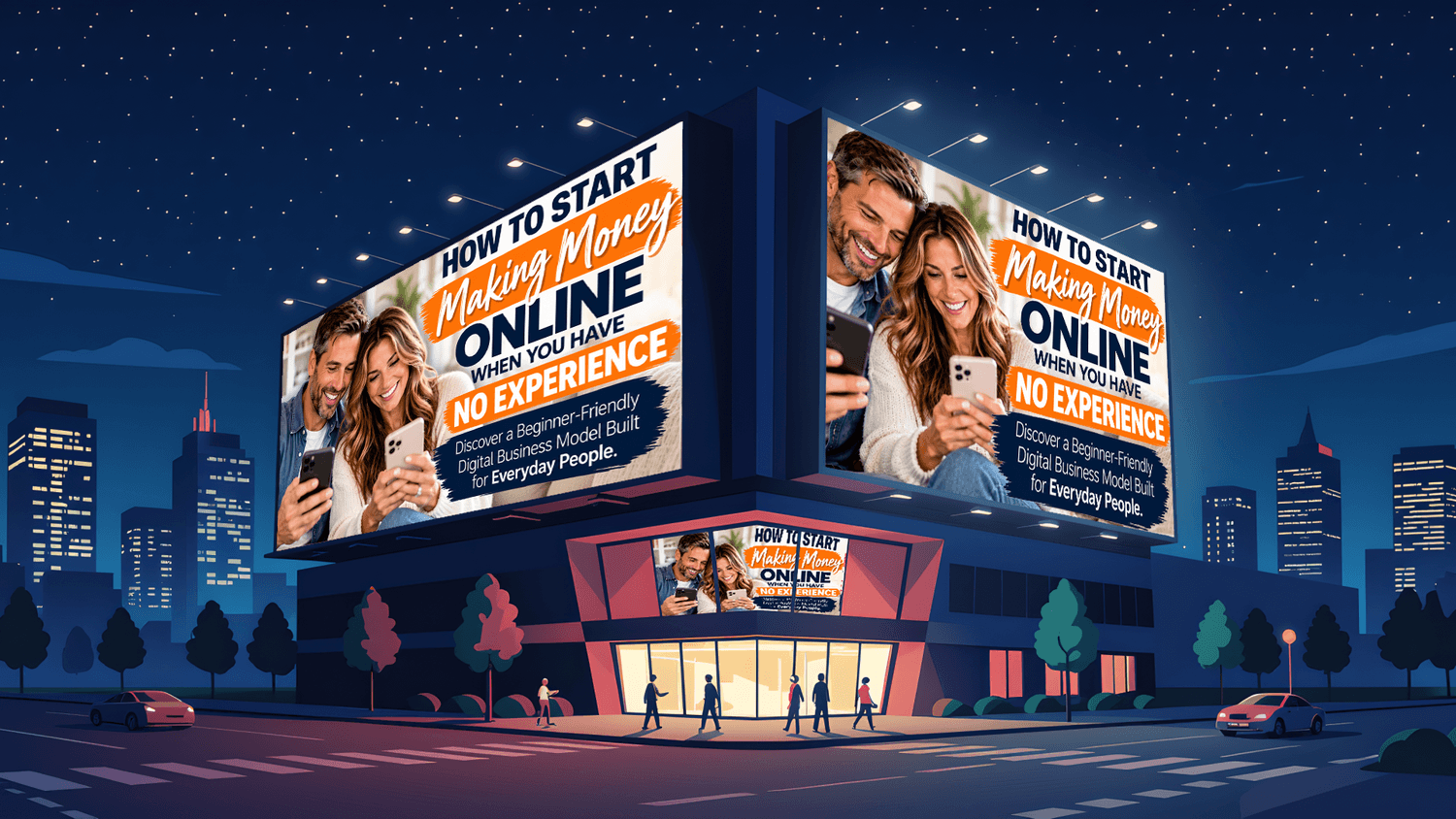

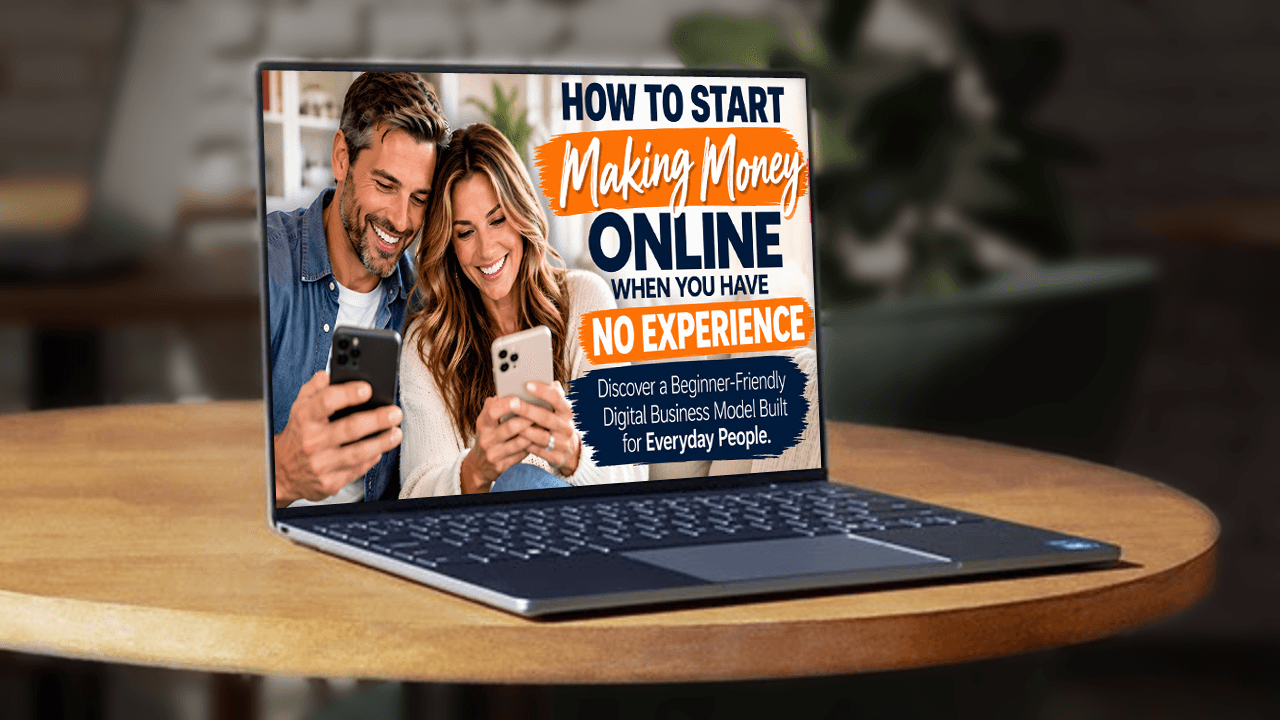


NEWSLETTER HEADERS










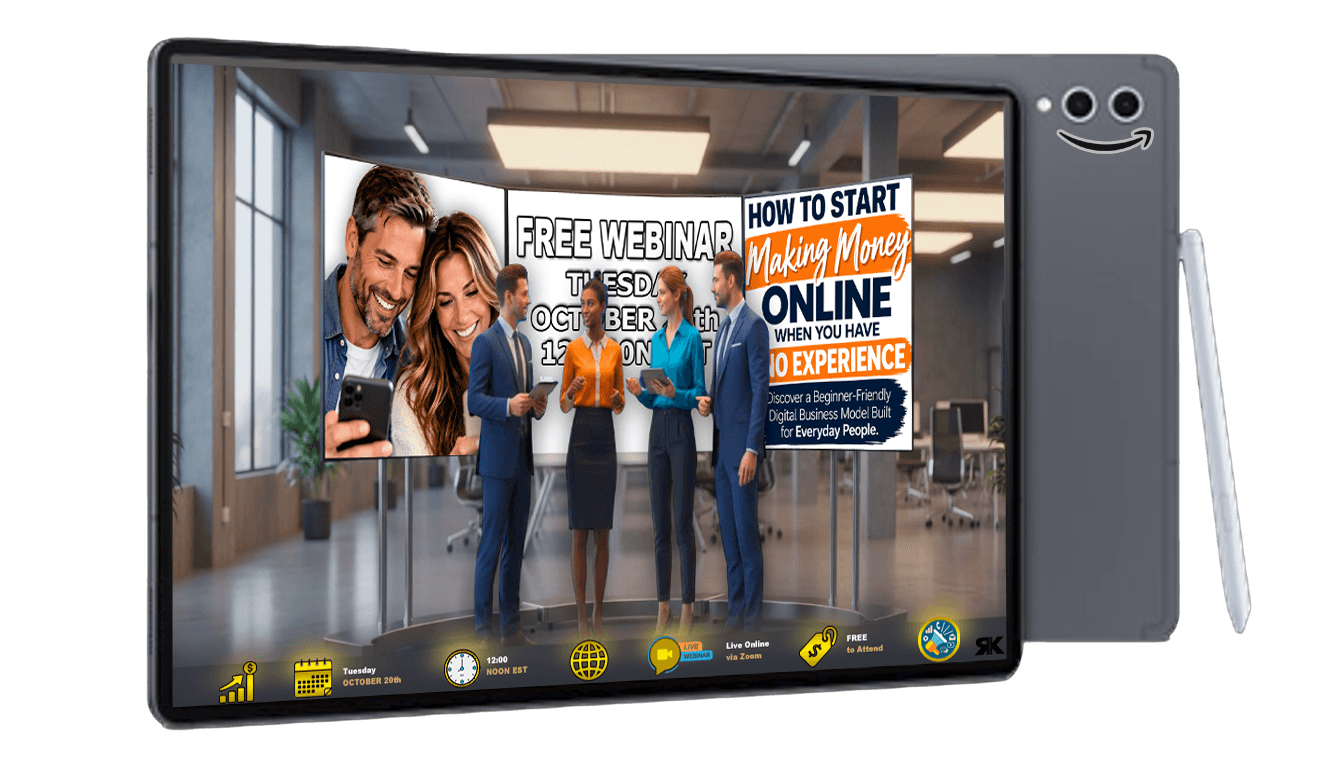
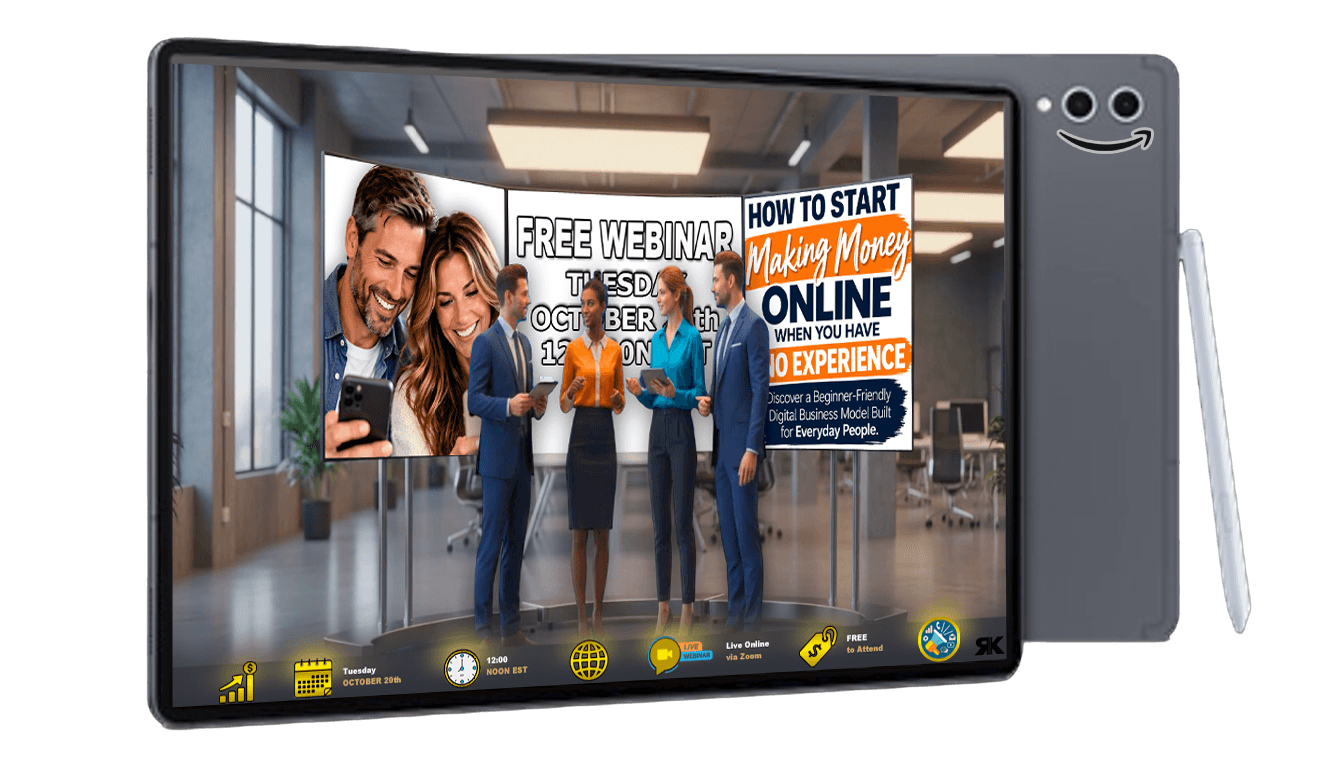
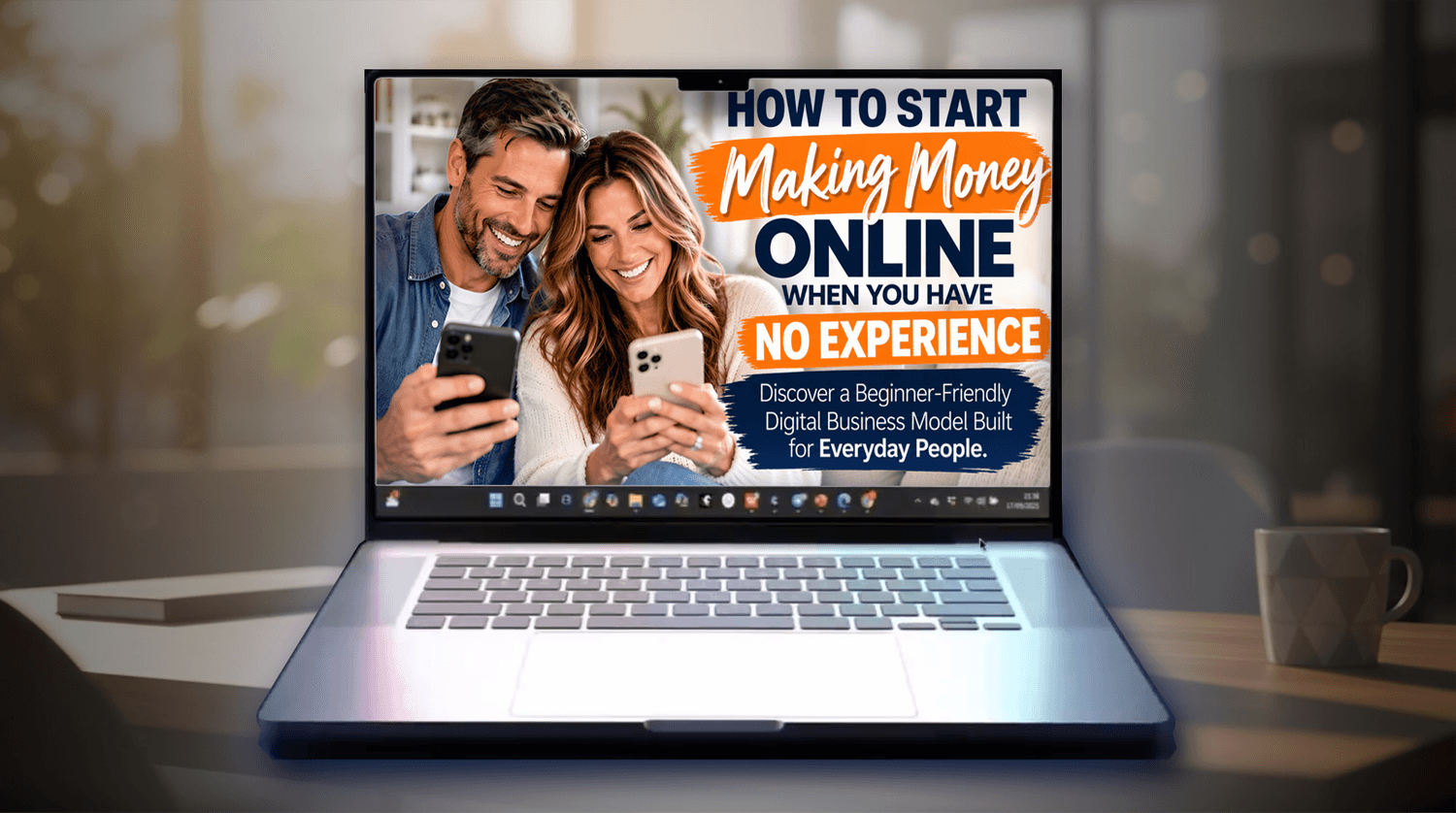
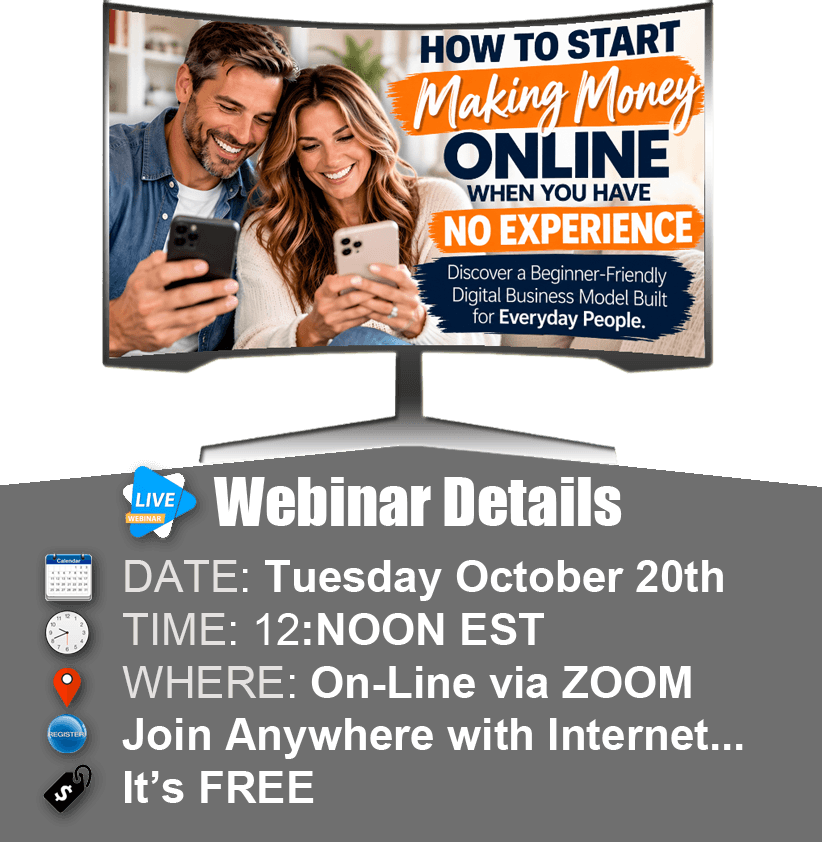
DEVICES








All images are basically the same size, just resized to position on this page
Most Images with a WHITE Background are Animated




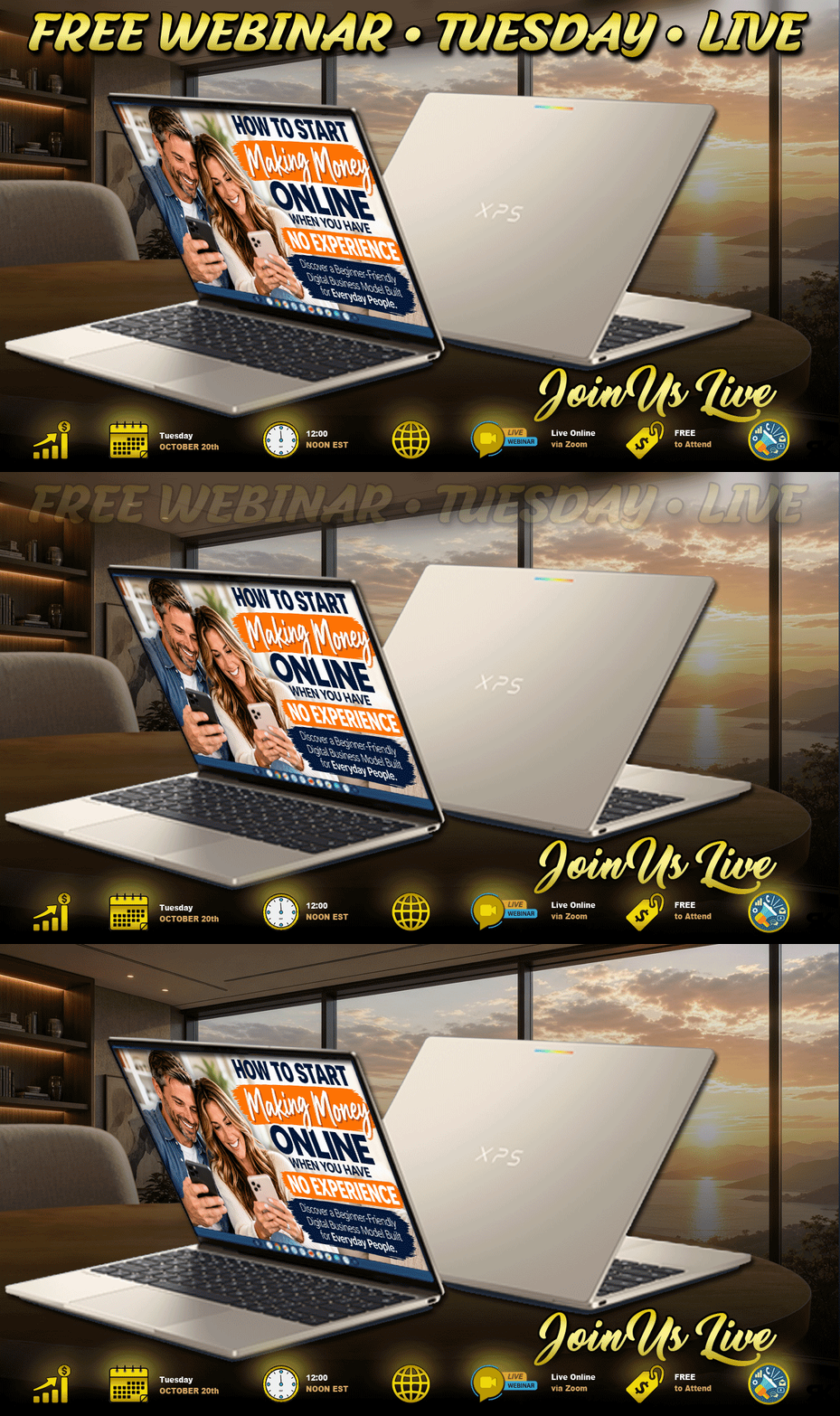
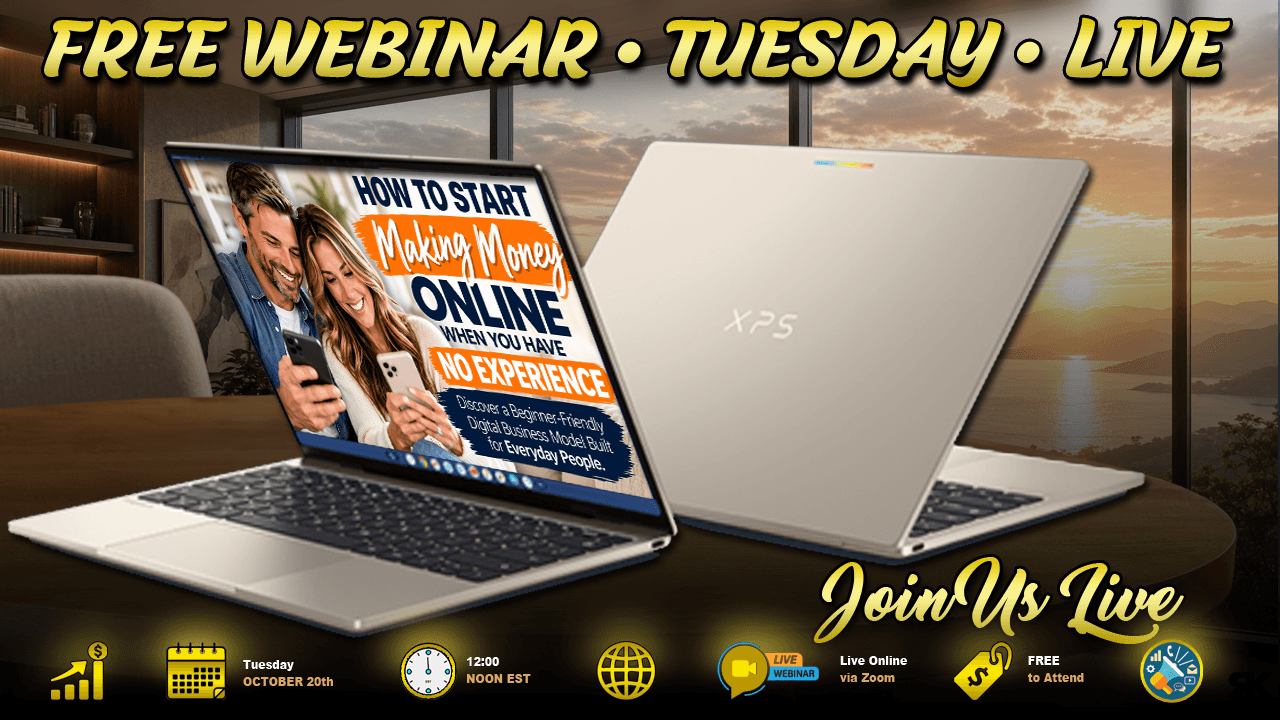
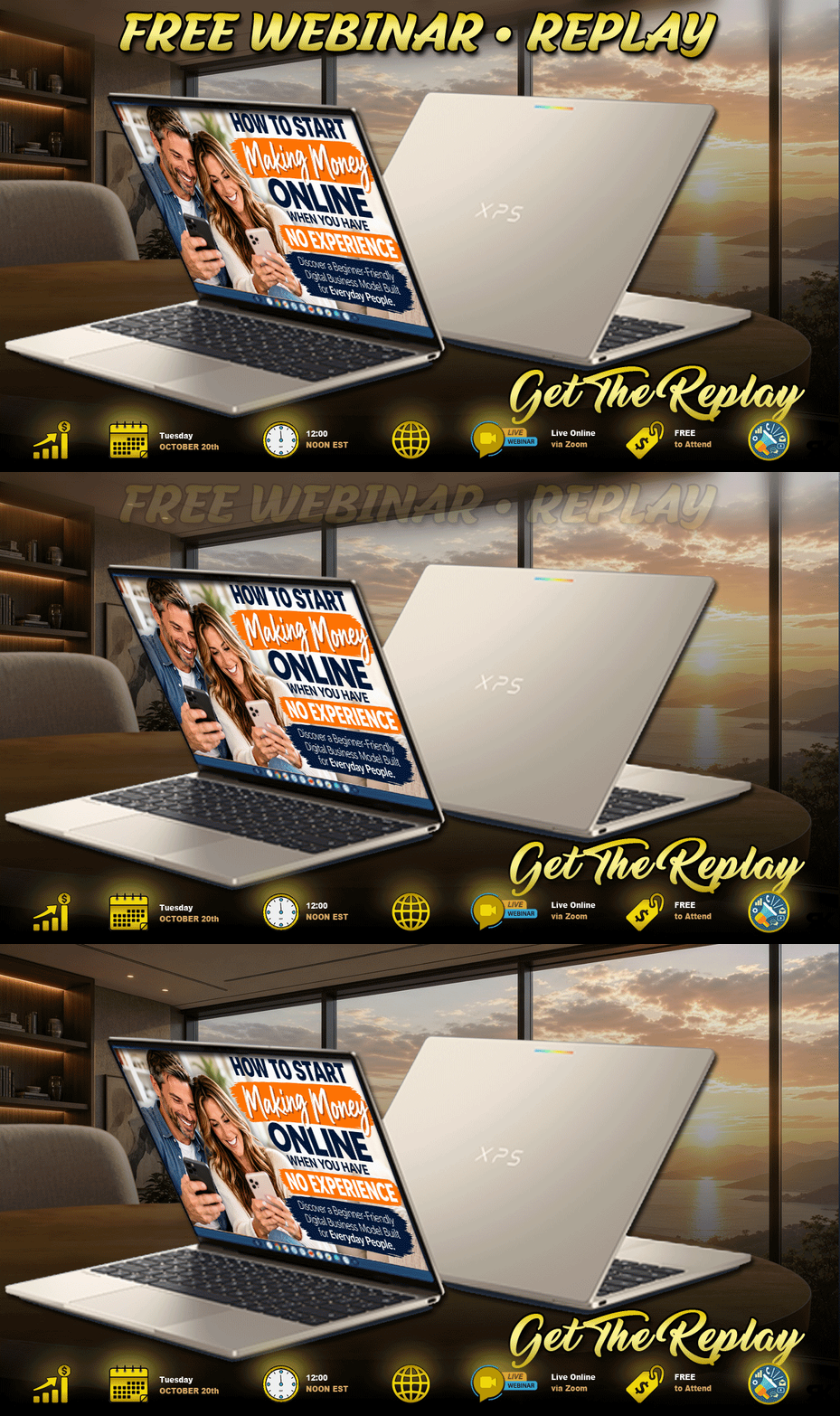
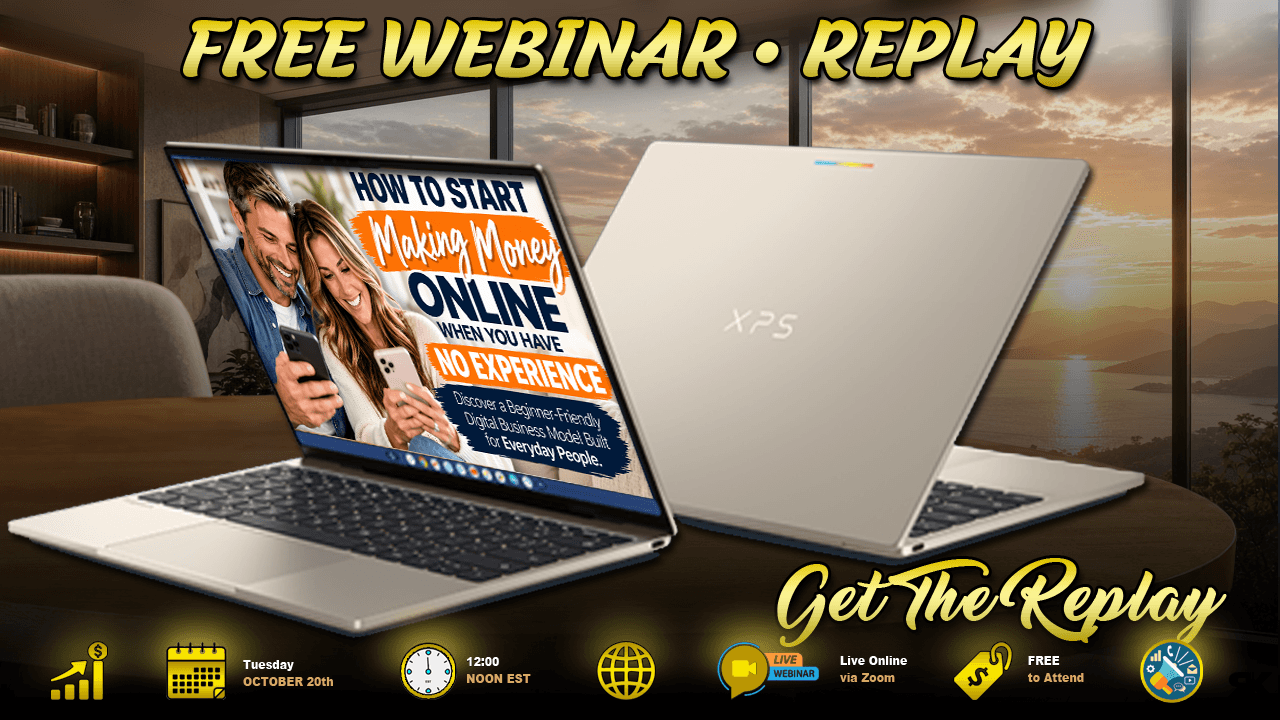
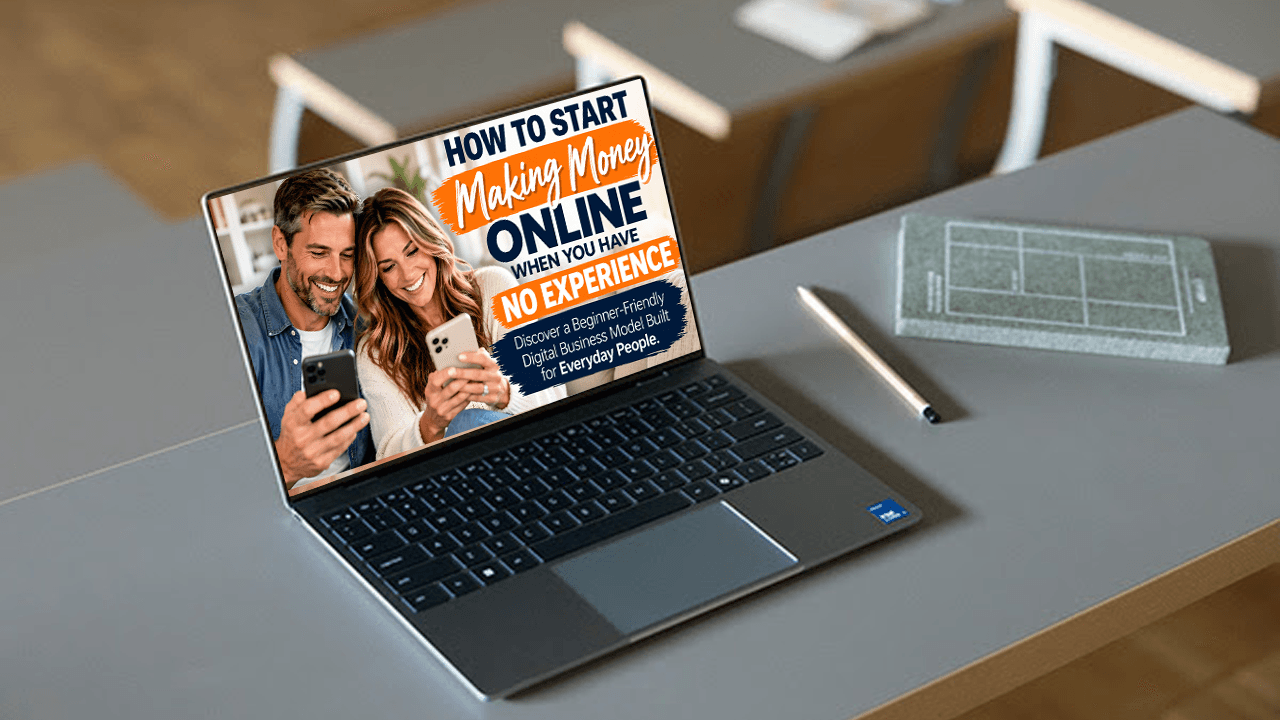
BANNERS
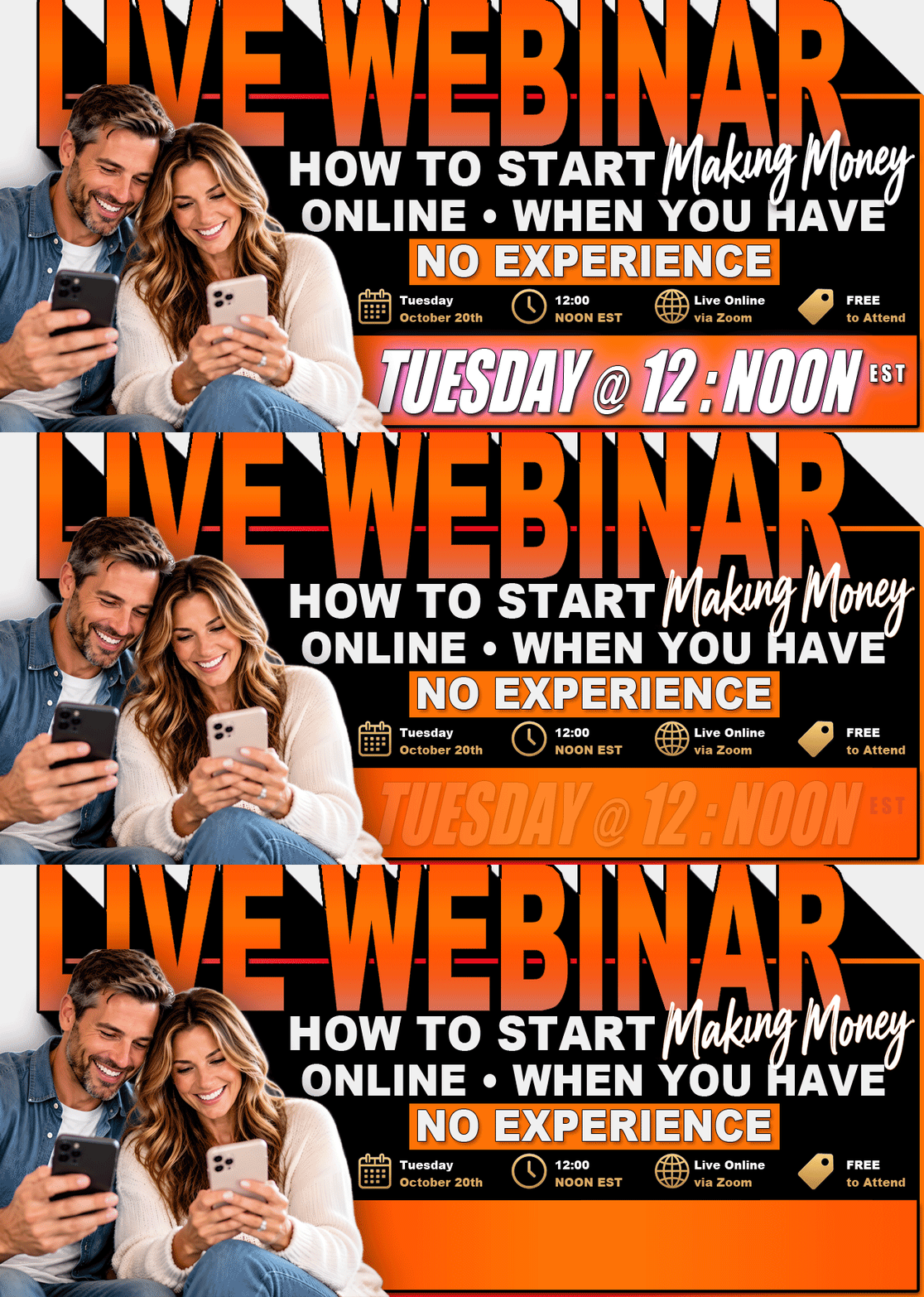





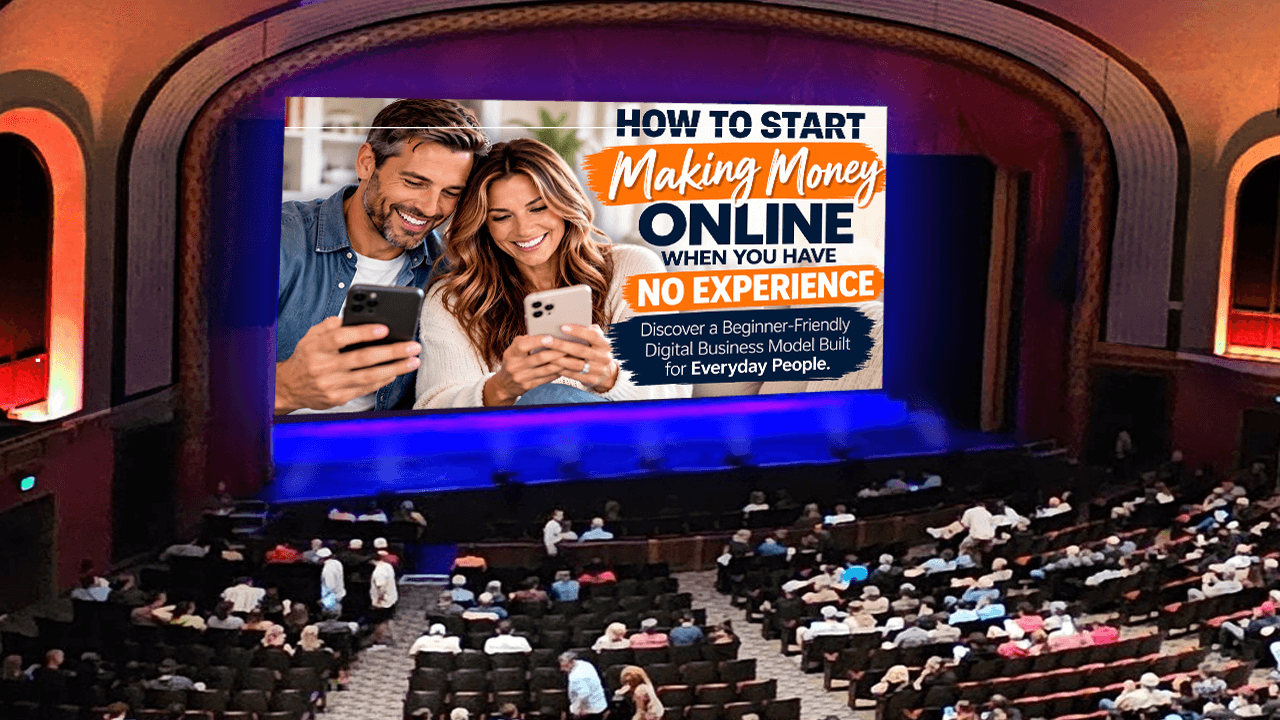
STAGE SHOTs
All images are basically the same size, just resized to position on this page
Most Images with a WHITE Background are Animated









to use: right click on image and "SaveImageAs" to a folder on your device
Save This Page to Your BookMarks : Press CTRL + D
PLEASE NO HOT LINKS
If you have access to this page, You have full rights to use images on your
Website/Funnel, Email Campaigns, & Newsletters
that you are able to effectively utilize them within your emails and newsletters to enhance your message.
If you have any request for a specil design, you can contact me so that we can discusss it further.
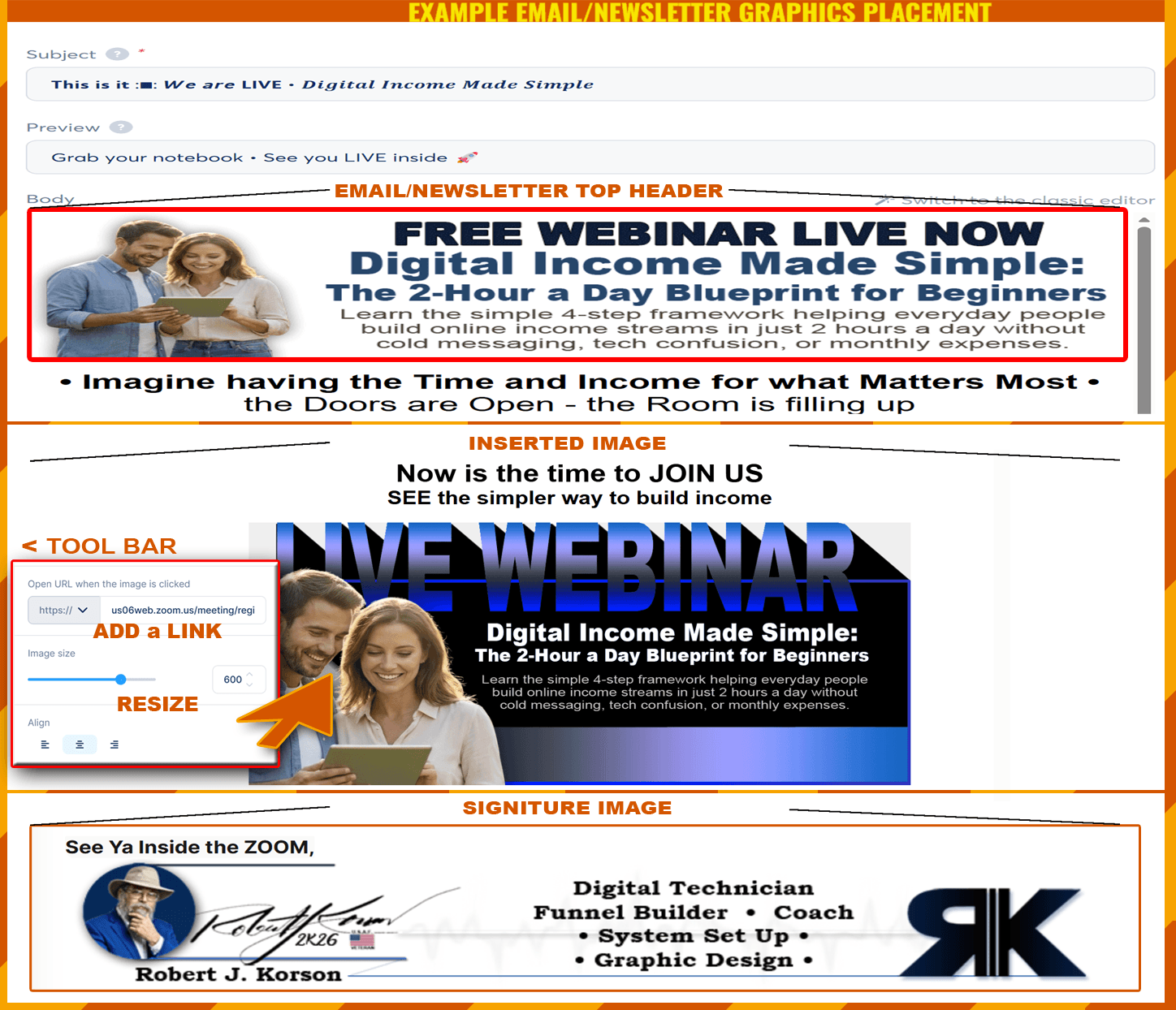
You can add an image anywhere in your systeme io email/newsletter. With the elements pane open on the left of your screen, choose the "Image" element in the Media section. Left click and drag it over to your email/newsletter body. Then you will click on the image placeholder, the edit pane will open on the left of your screen, click on the cloud icon to choose your image from existing assets or upload one from your device.
•To grab an image, right click on it, then choose/click "Save Image As" and save to a location on your device.
• To add image to an Email or Newsletter, you would have to add the image element to the body of your message, then from the tool bar at the left of your screen, select the cloud icon, select image from your device, upload to systeme io and place in your message.
• As a reminder, information on creating and scheduling newsletters and how they work is over in the Skool Classroom in the "Free Webinar Resources" module.
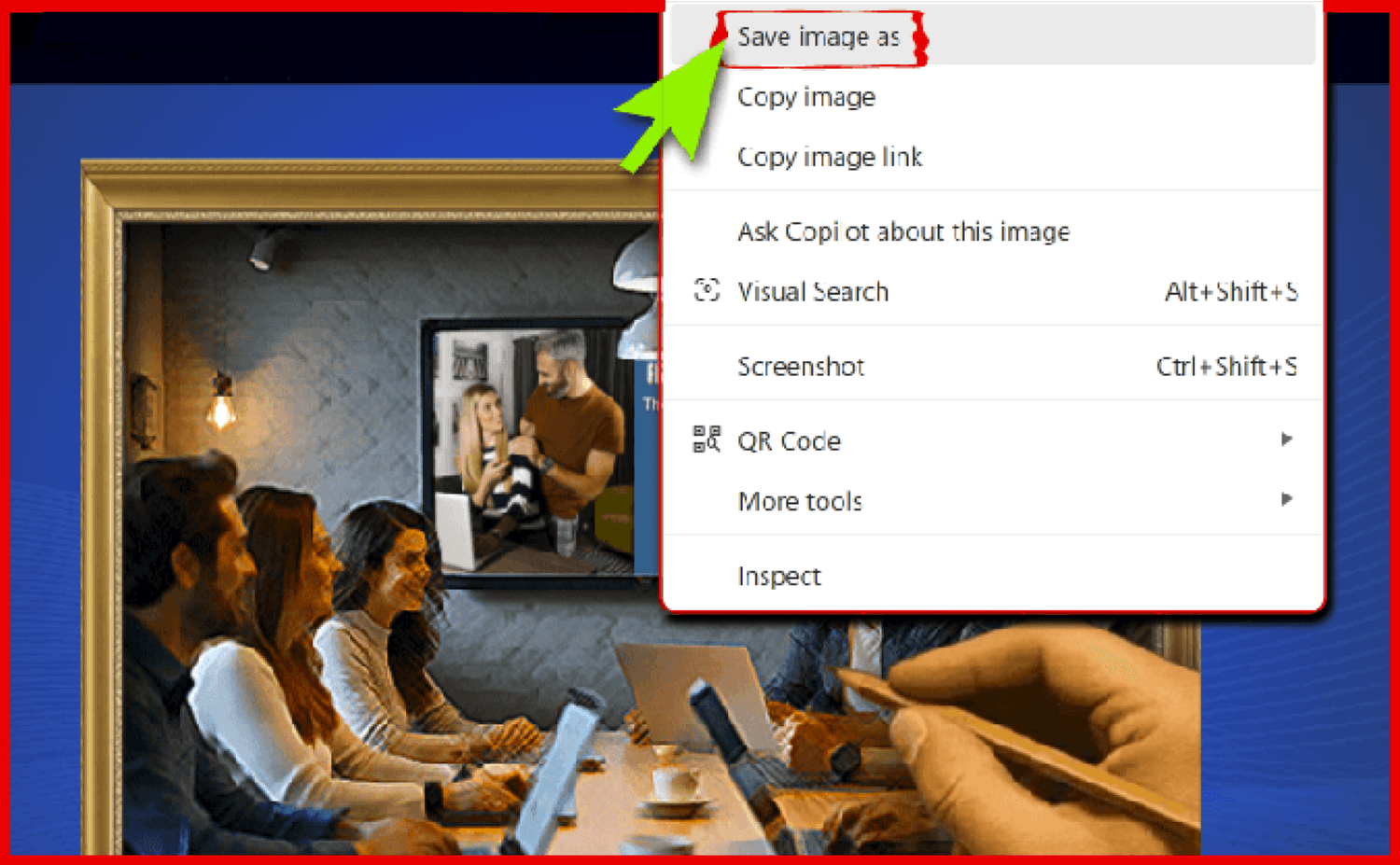
Left click on image you choose to save, when the pop-up menu appears, click on "Save image as" and save it to a location that you will remember on your device. The easiest destination is either "downloads" or "desktop". Key Note: Remember where you saved it!!!